wow, this is cool. lod3n, confronted by this heinous puzzle, wrote:

'2 minutes in Photoshop. All too easy. So, where do I pick up my cake?
- Increase contrast.
- Select the right wall of the maze using the magic wand.
- Select > Modify > Expand 4 pixels
- Create new layer.
- Fill with Red.
- Select > Modify > Contract 2 pixels.
- Delete. Now you've got a line tracing the solution.
- Manually clean up the outer edge, and connect the dots.
- Cake!'
Here's the result. Seriously nifty!
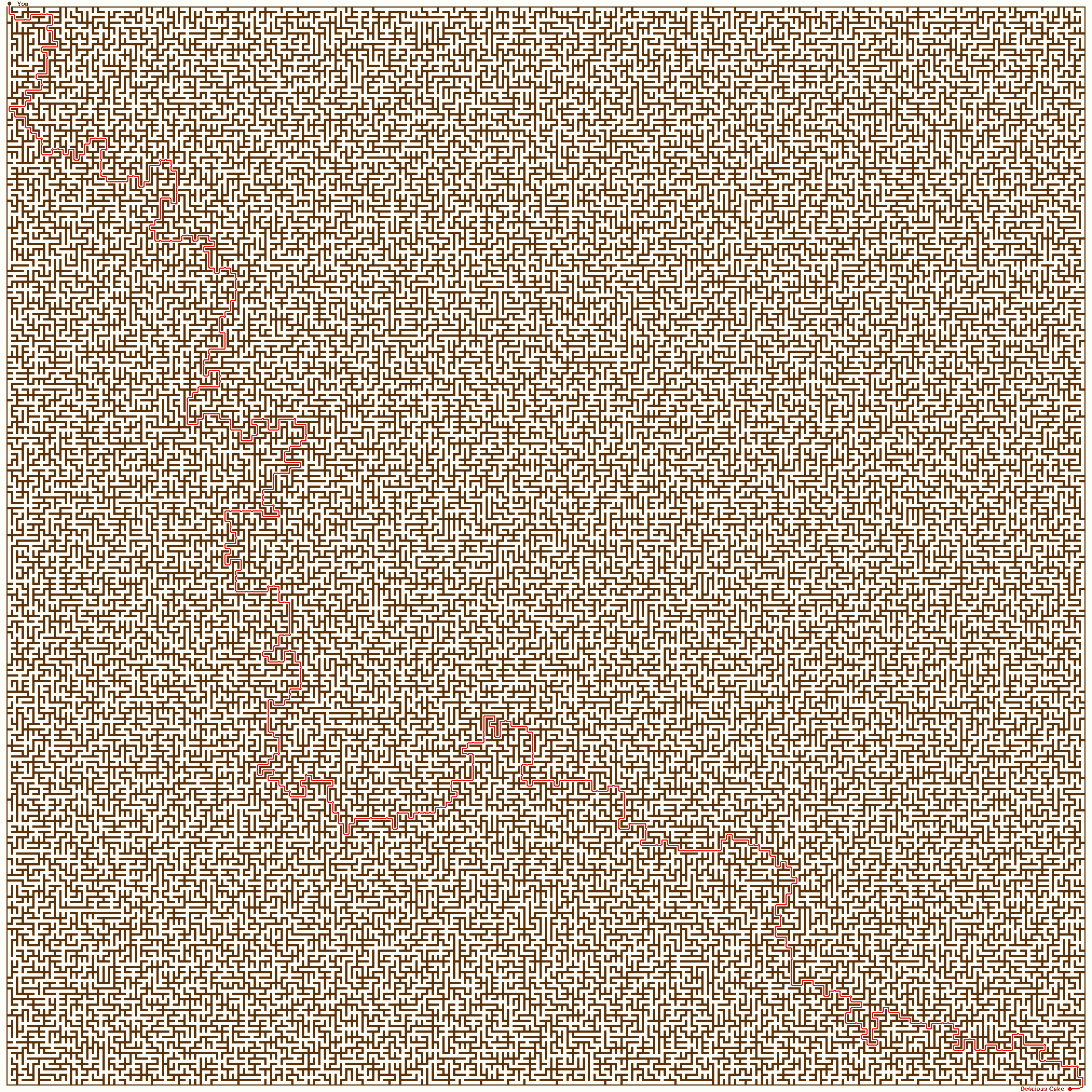
(Update: wow, this got Dugg heavily -- 17000 pageviews from Digg alone! Unfortunately that caused a bit of a server meltdown. Should be back now though...)
That's just taking all the fun out of it!
This is brilliant!!
Anyone know how to do this with the GIMP?
The same way?
yep, I did it the same way using The Gimp -- the only difference is that, instead of "Select -> Modify -> Expand / Contract", you have "Select -> Grow / Shrink".
(ps: woo! this post made Hotlinks, Reddit and Waxy's links!)
Nice trick :)
This uses the brute force technique to solving any maze: follow one side of the wall (right or left, it doesn't matter), and you'll end up at the exit.
This must be the most humorous and completely unexpected use of PhotoShop I've ever seen.
I really should remember this technique, who knows, it may come in handy one day.
if, as Androse points out, this is just using the left-hand rule, it will fail for complex mazes with loops. Of course, most mazes don't seem to have loops in them. And either way, it's a nice hack.
Waider, is there any examples of mazes with loops that this system wouldn't be able to solve? Even a simplified diagram?
I can't work out how that would look...
btw. absolutely brilliant idea, cheers for posting it. Makes me wonder how machines might see one day... filling in patterns in bizarre new ways we wouldn't expect.
This is delicious cake!
Bruce,
maze would have to have a start or end withing itself rather then on an outer edge and a loop could throw the solve by following a wall system off.
Seems like any maze with a loop would also allow you to shortcut the loop (that is, the loop would be redundant, because you could just cut the corner of it and carry on)
Great idea - can't wait to see how else this could apply.
Any maze in which you can draw a closed path that separates the start from the goal can't be solved with the left- or right-hand rule. It doesn't apply to mazes like this one, but if the goal is within the maze and you can draw a path that completely encloses it, the hand rule won't be able to get you past that loop, since there's no wall to follow across it.
Awsome!
I was able to skip step 6 by changing step 5 to "Create 1px Stroke around selection."
http://docs.gimp.org/images/filters/examples/render-taj-maze.jpg
It doesn't seem to work on this one.
OMGHAX!
Interestingly enough, a way to solve these kinds of mazes algorithmically is using Depth-First Search, which is one of the ways a Flood fill algorithm (i.e., the algorithm Paint/Photoshop/Any other graphics tool uses to paint or find regions) can be done. So, basically, painting a region and solving a maze is the same thing, from this point of view.
Very cool.
This is why photoshop rocks. lol For mazes just go here http://www.billsgames.com/mazegenerator/
http://docs.gimp.org/images/filters/examples/render-taj-maze.jpg
That just looks like a maze. There no real start or end point. The only sectioin that might work is the two openings at the top right, they enter and exit the maze. All other openings hit dead ends.
It's easier if you just use expand 4 pixels and then stroke the selection. (click with right mouse button and select stroke). 2 or 3 pixels width and center option makes it look nice with fewer steps. There is no need to create a new layer either.
There's an easier way..... after you've done the "expand", change tool to "Rectangular Marquee" and stroke with red, 2px, center. Voila! Avoids all the layering/fill/delete guff. All that's left is the tidy up job.
Ahh dammit, I was beaten to it.
rofl, very nice
Increase contrast by how much? What tolerance settings for the magic wand? Some details are left out of the directions.
Other than combining steps 5-7 with a selection stroke, you should then
(a) Select the big empty external space (in the above maze, the lower left area),
(b) Pick another color, e.g. Blue,
(c) Stroke the selection with 1 px size, either on a new layer or back on the original,
And you'd have a line tracing the solution. Don't even have to tidy, clean up, etc.
Increase contrast to the maximum, make it Black and White. And then for tolerance settings it won't really matter.
This is so much more complicated than it needs to be. Find the exit and do a continuous magic wand. Fill. BAM! There, works every time for a high enough contrast image.
[this is good]
ZOMG HAXORS!! Wow, I didn't see that coming. Nice use of photoshop.
This looks too crowded and messy. How to get a big & clean. any idea
http://www.khrido.com
Here's a maze type it doesn't work on:
http://www.glassgiant.com/maze/
The start and end points are inside the maze, and all walls are connected.
Wow that's an insane way to solve the problem.
Can you do this with Paint.NET?
Seriously cool the things that you can find on Digg. Where was this when I was programatically solving mazes as CS projects? Not that it would have helped, but it would have at least been a welcome distraction from the tedious code that I never did get to work quite correctly...
Brilliant idea. Thanks for very interesting post. btw. I really enjoyed reading all of your posts. It's interesting to read ideas, and observations from someone else's point of view… makes you think more.
i dont get this tutorial. What do you mean when you say: Select the right wall of the maze using the magic wand.? Do you select the right edge of the wall? I tried with maze in the tutorial but selecting the edge takes a while and it also selects the inner walls.
Yea, you just select the right wall. (as if you were walking into the maze) And then the tutorial should work fine.
Save as 2 color bitmap in paint.
Save as 24 bit bitmap in paint.
Fill one wall with light color.
Maze solved in paint.
You know... or you could:
1) Image > Adjustments > Black & White
2) Color one of the side walls blue.
There is your path.
everyone who says to paint one wall: that will give you a solution. but it will give you a path that, in the worst case, will have to travel down every single dead end on the maze. this method will give you a better solution. if you notice, it doesn't follow any dead ends. it gives an optimal left- or right-hand path from start to finish. if the maze only has one unique solution, it will give you the optimal path through the maze.
Interesting - Step 2-5 basically select the solid part of the maze which has a clear outer edge which is the valid path - instead of selecting the 'right wall', you can try to select the left wall, and get similar result.
Very interesting - Thank you.
For Mazes like this, with no loops and with the entrance and exit on the outer wall, the Maze is effectively split in two by the solution path. The left half section of walls and right half section of walls are each like a tree, with the solution path going between them.
Therefore, an even simpler way to solve a Maze of this type in an image editing program is to flood fill one of the walls with a different color. That won't show the solution as a line, however it does allow you to navigate the Maze by the most direct route without error, if you simply ensure you're always in a passage between walls of different colors.
The original technique posted works similarly to this, except it thickens one of the large wall sections, until all the internal passages are squeezed into nothingness, leaving just a large solid block shape. The inside edge of that shape goes down the solution path (because it's the boundary between it and the other wall section) where highlighting that inner edge shows the direct solution.
For additional methods solving Mazes, such as Depth First Search and other algorithms, see http://www.astrolog.org/labyrnth/algrithm.htm#solve
I tried this with a different extremely complex maze and it works.
As long as there is one entry way and one exit, it should work.
The solution at the top is too complicated and can be simplified to 2 steps.
Increase contrast of maze with Image > Adjustments > Brightness/Contrast > Contrast slider to right for maximum contrast.
Select paint bucket tool with contrasting color (to black maze) such as primary red. Using paint bucket tool click on wall under the word You at top of maze. Right 1/2 of maze's walls turn into color.
Solution is gap between colors. Cake!
Alright - call me the village idiot - but when I follow the instructions, exanding the magic-wand selection by 4 pixels causes the WHOLE image to be selected. What am I missing? Any advice? Thanks!
there's an even simpler solution. go around the maze.
i'll have to remember next time i'm caught in a maze, with a map , and a copy of photoshop.
damn it where the hell am I.
first rule!
hey lod3n! Lucy and Mario Dinis say hi ;)
I can't make this work, no matter whose instructions I use... What in the hell am I doing wrong?? By "right wall" do you mean right black line of the maze, or the white space to the right of the maze?? And what layer am I supposed to be on when I am doing each step?? You're simplifying the instructions to make it sound like it's easy as pie. Please expand your instructions. I wanna know what the tolerance of my selection tool should be at and everything! I use Photoshop a lot and my settings are probably different than yours. GRRR, frustration!
Here are some expanded instructions:
Hope this helps.
Who is 'lod3n'? And where was this originally published?
lod3n is the guy who just posted a comment above yours. I can't tell you where it was originally published.
Cool, a $750 answer to a maze. This must be one of the most unique ways to use photoshop I've seen!
I was able to skip step 6 by changing step 5 to "Create 1px Stroke around selection".
Haha, so obvious yet so genius :)
I decided to give it a try, and checked it on another maze - and it really worked - AMAZING !!!
Such a simple solution but it worked like a charm - well done.
Thanks for the info
Thank you it's simple but work at 100%. I noob in Photoshop but hope that this sample help me increase expirience.
You guys must have a LOTof time!! LOL I love this stuff though. I find it in Stumble Upon, think it's cool, and add it to my links2.html page! Simply amazing to me that there are people so deeply involved in so many application areas of computing. Thanks!
The cake is a lie
Just make it a PNG file. Then it is 68 Kb instead of 1.5 meg! Prevents a meltdown next time.
The expanded instructions helped ALOT, thanks. absolutly amazing!!!
@Blanka: I presume you tried that? I must get a copy of your PNG compression software, as mine produces a 7MB file -- much larger than the 1.5MB jpeg...
Are you guys seriously going to make me say it? Ugh, fine.
A-MAZE-ING!
@Justin, no he's mostly right. I convinced Photoshop to compress it down to 320 KB using PNG. See here:
http://www.saneasylum.com/images/cake-maze-solved.png
@Justin, scratch that, 56.4 KB with 4 colors:
http://www.saneasylum.com/images/cake-maze-solved.png
doh, you're right! sorry Blanka.
I can't get 56.4KB out of The Gimp, but even the 660KB it gives me by switching to a small number of indexed colours in the palette makes a difference.
Feel free to snag the copy I posted, if it will help your bandwidth. :)
I just love this, the maze solving Photoshop tip and the debate in the comments, nice. Believe it or not, I jumped through couple of blogs until I reached here and being able to actually read the mini-tutorial.
Oh my god this is genius.
The idea of solving a maze is to do it on your own and actually think. Using photoshop to solve a maze is like taking the stickers off of a rubix cube and putting the colors together.
Propecia,
You make an excellent point, which I'm quite sure you're ready to demonstrate!
I'm not the smartest guy in the world, so solving this maze manually seemed nearly impossible in any reasonable amount of time, which is why my own lower-powered brain downshifted into "cheat at image manipulation with Photoshop" mode.
Please, show us how it's done properly, and solve this maze on your own with actual thinking, and send us your incredible proof of the superior maze-solving methodology. It would be interesting to know exactly how many minutes or seconds it takes you to reach the end, so a quick video of the process would be the preferable format.
Here is your maze:
http://www.saneasylum.com/images/PropeciaMaze.png
Ready? Set... GO!
For me, the essential missing setting, even from lod3n's expanded instructions, was to have the wand set on "contiguous" ...otherwise, it would just select all black pixels on the screen, which was monumentally frustrating. :)
(P.S. lod3n: That's one hell of a maze you set for Propecia! :D)
(P.P.S. I know you're being sarcastic, but even if this is a "cheat" solution to mazes of this type, you still had to know something about mazes (i.e. that they only have two walls) before you could jump to the solution. I didn't know that, so I thank you for teaching me something new.)
very call and of course the subject is photoshop, my favorite program
Wowie
Gotta try this!
Awesome idea... though how'd you think of it?
So simple - and yet it can solve any maze. unbelieveable !!!
Cool - I love this!
Solving the maze with Photoshop - now we need to find the method to solve Soduko :-)
Absolutly Brilliant idea !
? have followed your writing for a long time.really you have given very successful information.
it would just select all black pixels on the screen, which was monumentally frustrating.
very call and of course the subject is photoshop, my favorite program
I got a simpler way. try this.
(excuse my poor english, 'cause I'm Korean and english is not that good.)
This doesn't work with a maze which has loops or exit in the middle of it.
I forgot something.
My way works only with a maze which has 1 pixel-wide wall and path.
Before using the method, maze need to be adjust with some filters (maximum or minimum) and to be resized.
You know how you tell yourself you are studying because you have your certification books opened in front of you? But you are really clicking on Stumble Upon to find interesting posts to read?
Yeah well, I came across yours and had to write to tell you I enjoyed it very much. I gave it the thumbs up, so more people can come across it and enjoy it also.
Wow, what's the point of solving it this way? Takes all the fun out of it if you ask me.
This is why photoshop rocks
You know how you tell yourself you are studying because you have your certification books opened in front of you? But you are really clicking on Stumble Upon to find interesting posts to read?
Yeah well, I came across yours and had to write to tell you I enjoyed it very much. I gave it the thumbs up, so more people can come across it and enjoy it also.
Thanks, very call and of course the subject is photoshop, my favorite program
Good thinking! Thanks for the post!
I read this post a couple of months ago, and 2 weeks ago I had a question in one of my university classes, asking "try to build a game using a graphic software", It took me couple of minutes to remeber, but when i suggested this solution as an option, my lecturer was amazed of the solution I offered :-)
Thanks :-)
I'm really very useful to follow a long-time see this as a blog here Thank you for your valuable information.
Ha! I was looking for a way to solve that exact maze. Lol.
Do you entered the studio to work ...? I do not understand
everything very open and transparent
I was looking for a way to solve that exact maze...
you still had to know something about mazes (i.e. that they only have two walls) before you could jump to the solution. I didn't know that, so I thank you for teaching me something new
Thank you for good sharing.
Thank you for good sharing.
yep, I did it the same way using The Gimp
Thank you for good sharing
Thanks for the hints
nice collection
good admin thanks.
It doesn't work...
seems delicious like my cupcakes
good admin thanks.
A-maze-ing haha, a great comment to a great post!
A-maze-ing haha, a great comment to a great post!
Great tut. thx :)
Thanks for this awesome writeup. I will use this for my research paper so I have bookmarked this page! Thanks so much again!!!
great tutorial man thy!!
hmmm searched for it a day long! ty
thx for sharing dude.
This is amazing stuff!
Heh, but that is not the point of the maze :) The point is to solve it yourself. However, still an effective technique for solving it fast! ;) You might try one of my mazes too!